Collections & Collection Rules
Group images into collections by hand or automatically with rules.
Collections are hand-picked sets of images, like albums. An image can be in any number of collections, and adding it never moves or copies the file.
Make a collection
- In the filter panel, click + New Collection and give it a name.
- Add images by dragging them onto it, from the right-click menu, with Manage collections (M) in the detail panel, or from the bar that appears when several are selected.
- Use the ⋯ menu next to a collection to Rename or Delete it. Deleting a collection never deletes its images.
Fill collections automatically with rules
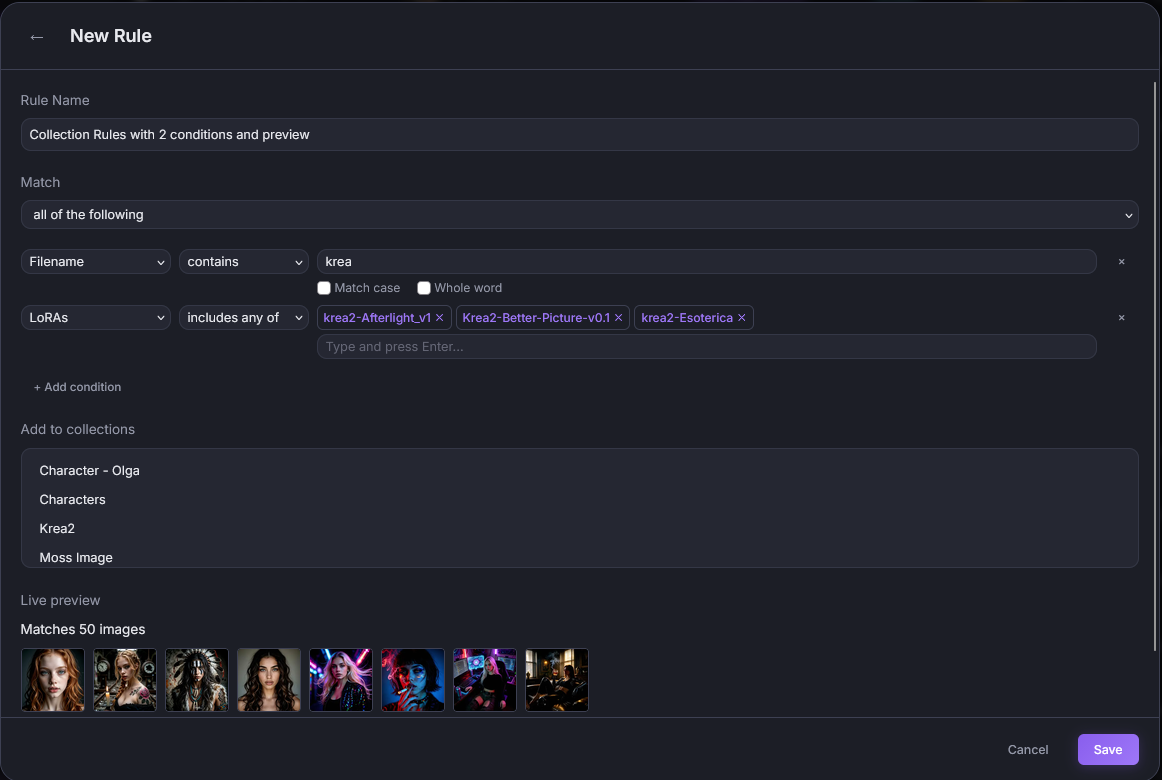
A Collection Rule adds matching images to a collection for you, for example every image made with SDXL that's rated 4★ or more.
- Open Settings → Collection Rules and create a rule.
- Pick the collection it fills, then add conditions: a field (such as model, LoRA, sampler, prompt, size or rating), a test (such as contains, equals or greater than) and a value.
- Click Preview matches to see how many images it would add before saving.
Rules run on new images as they're indexed. Use Re-run all rules after changing a rule to apply it to your whole library.
If you remove an image from a rule-filled collection yourself, the rule won't add it back.